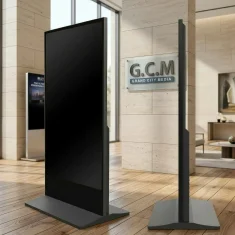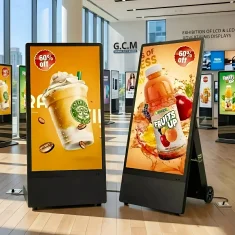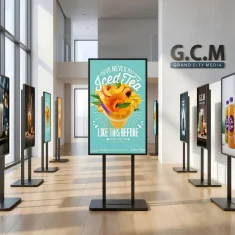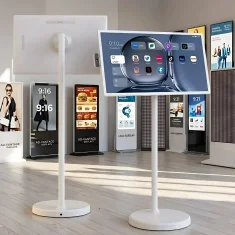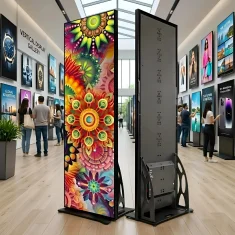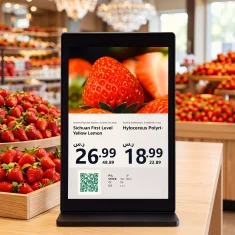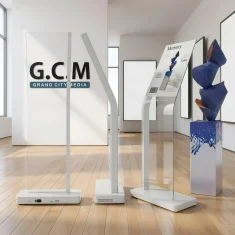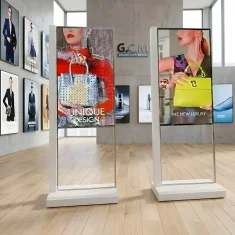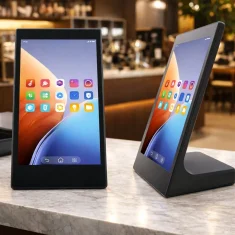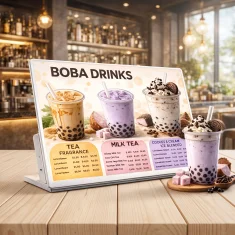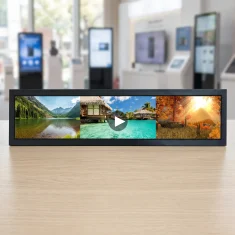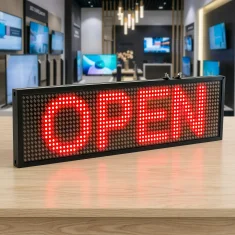
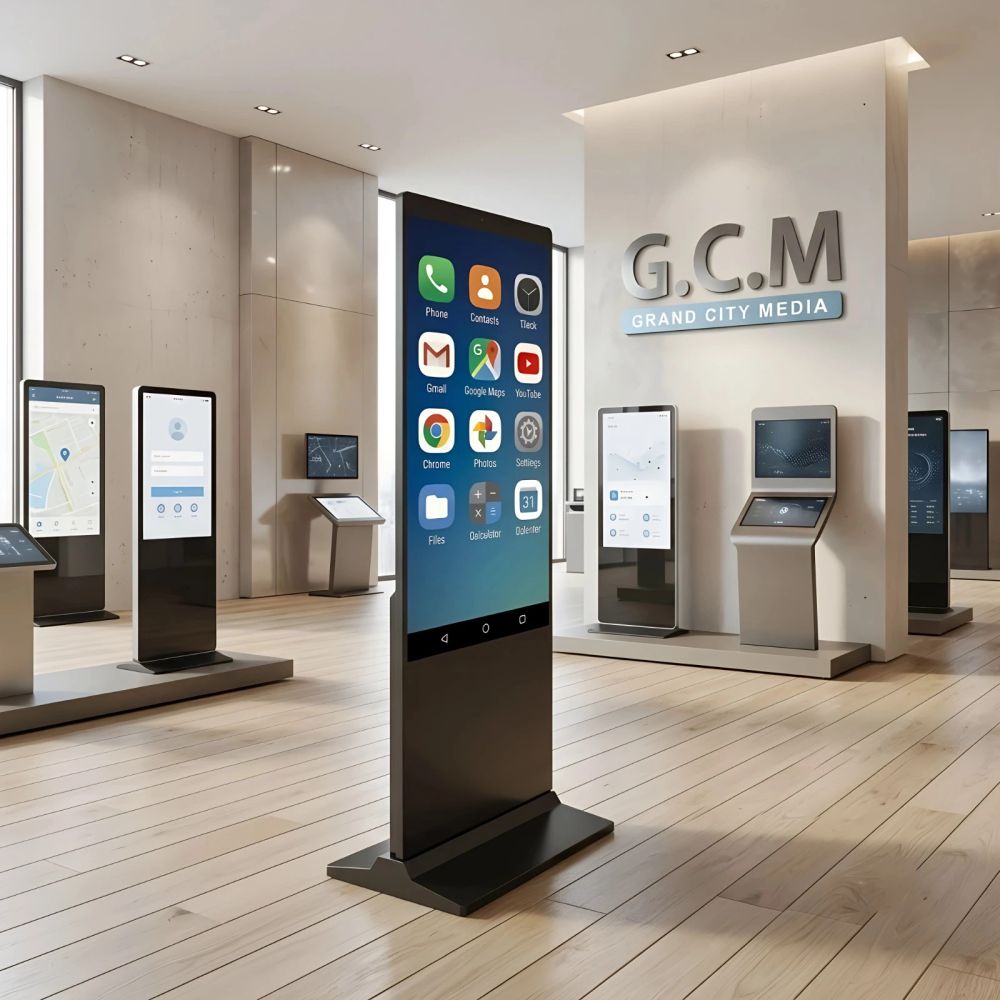
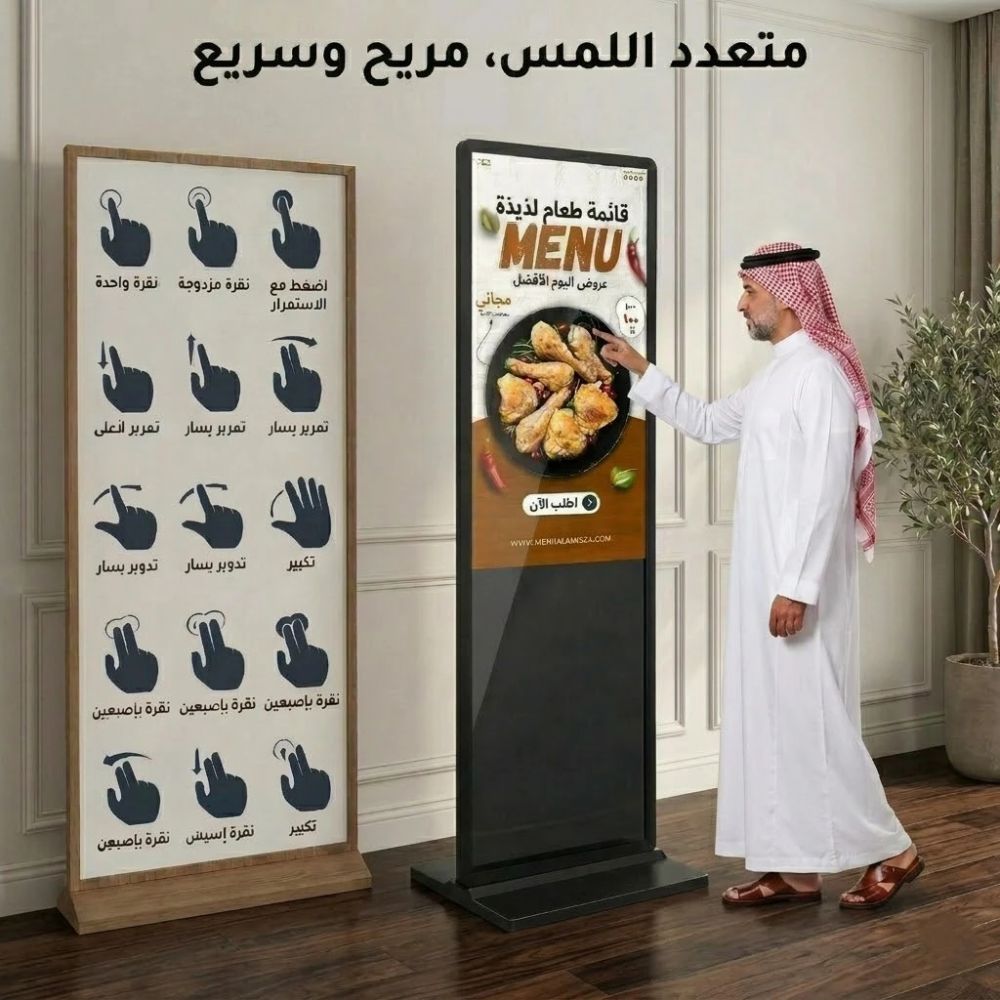
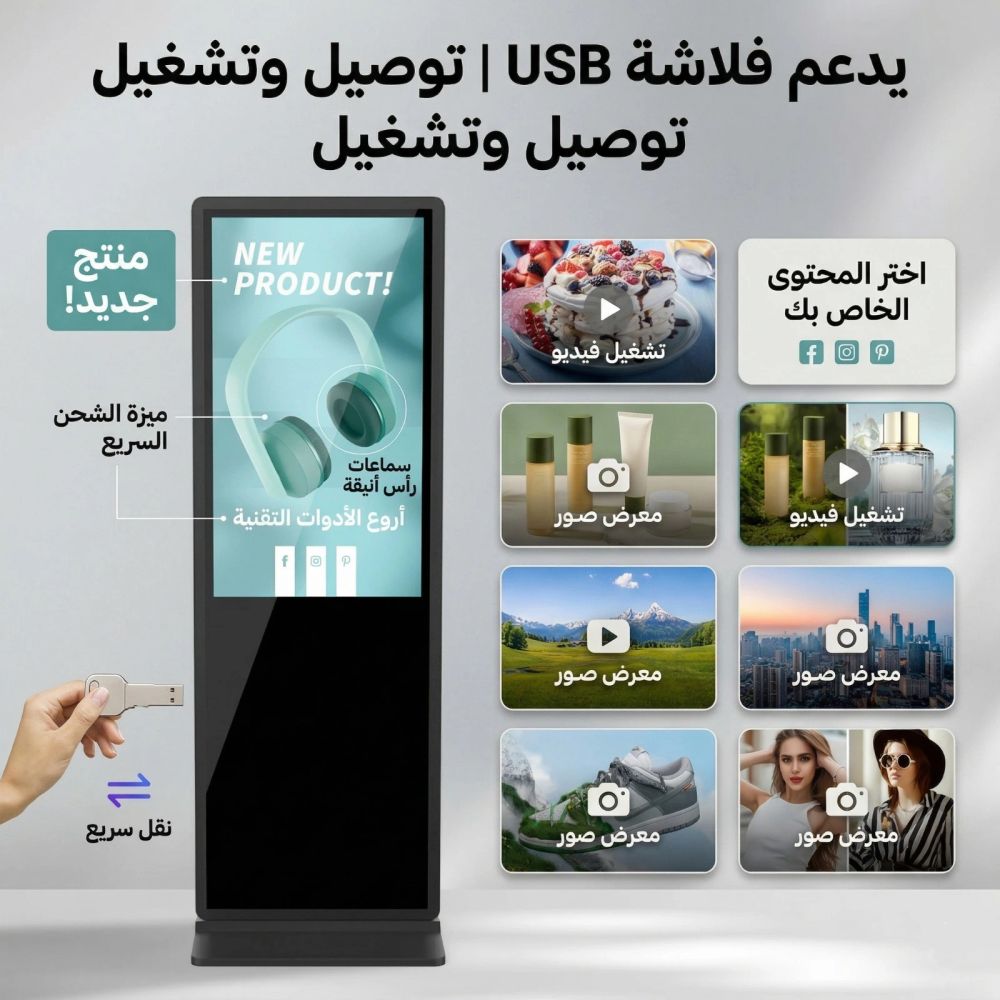
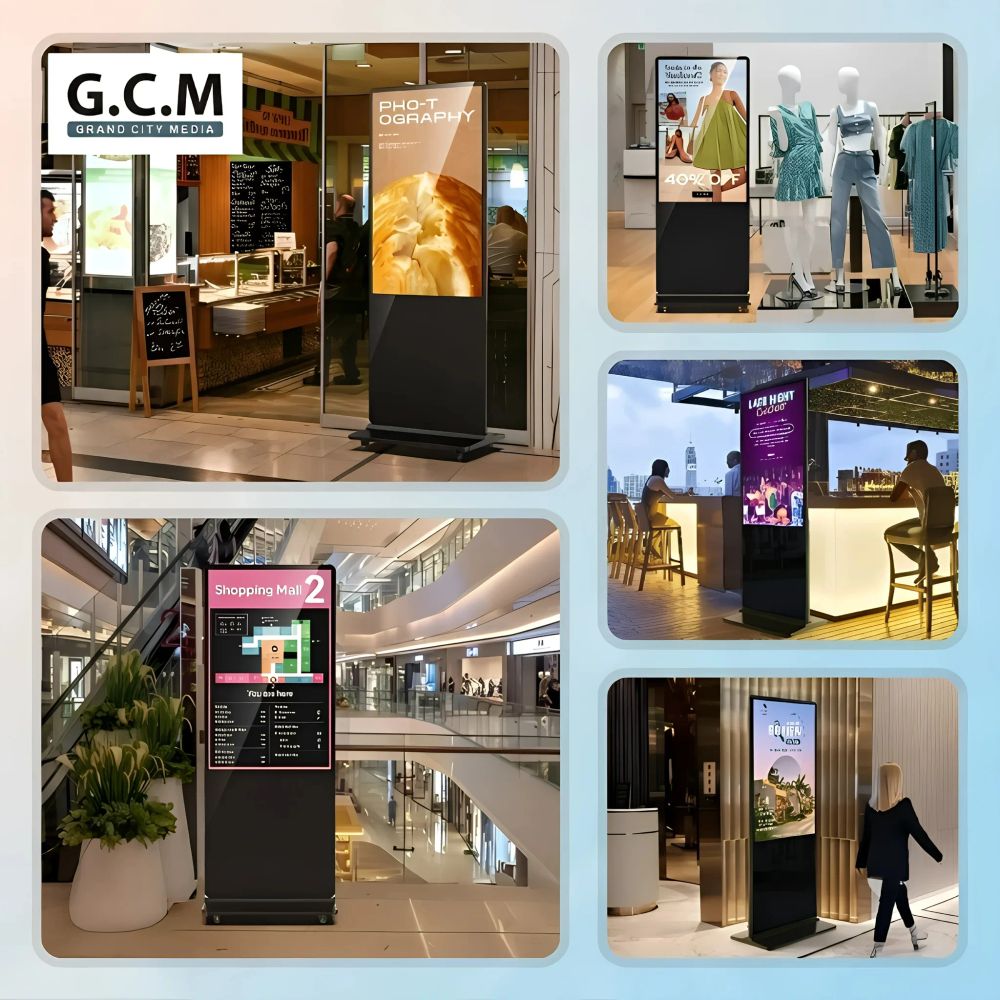
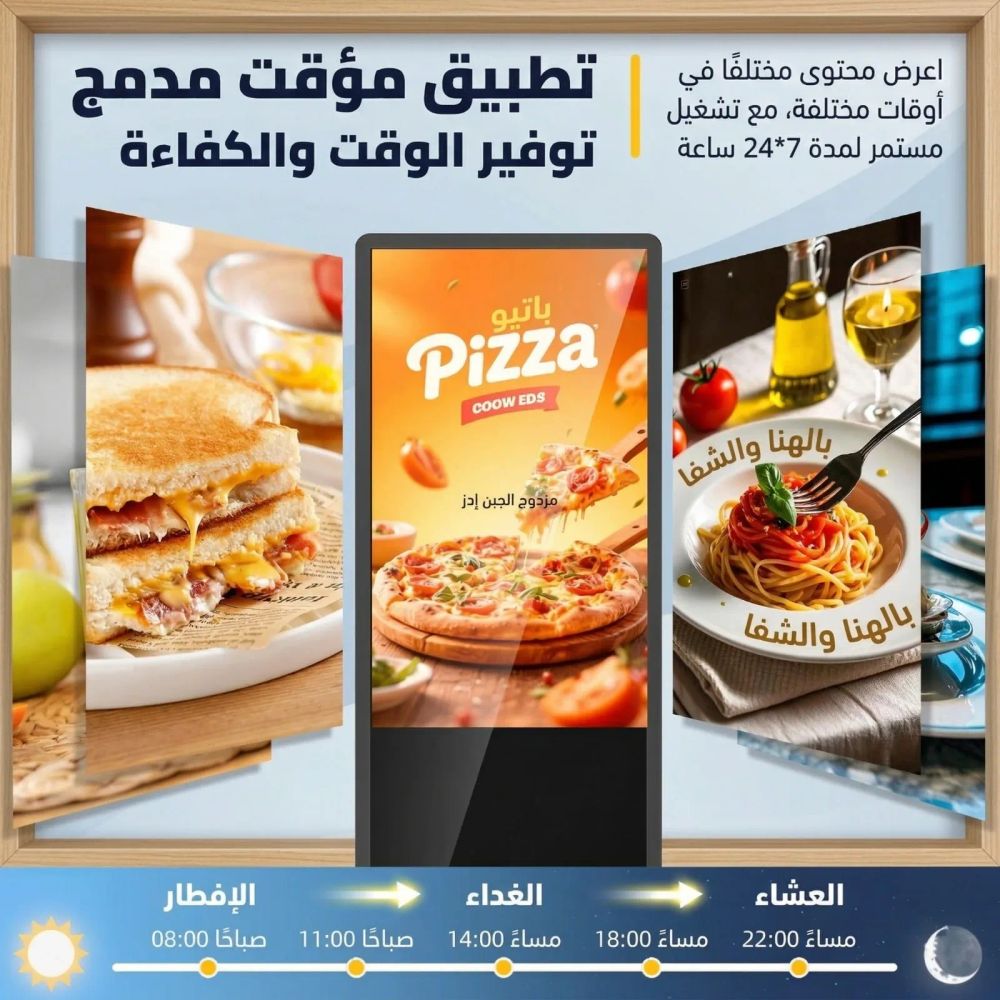
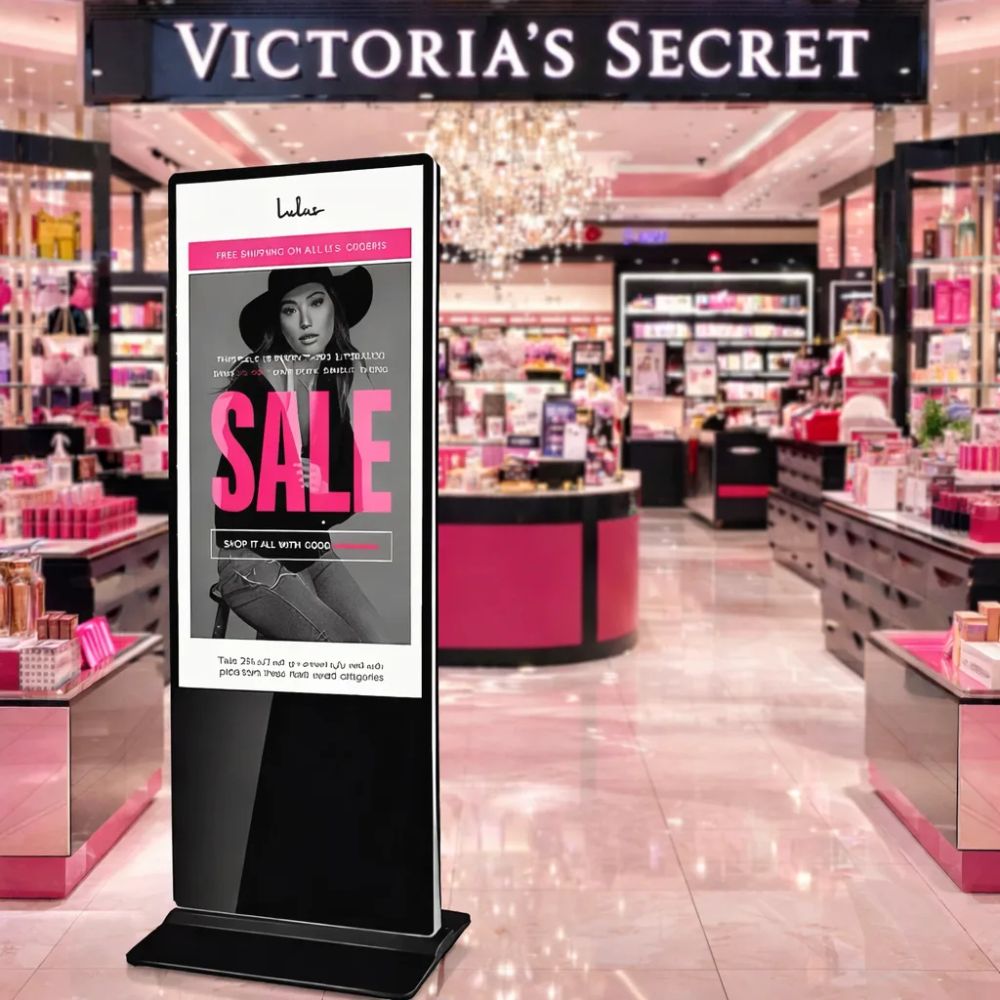
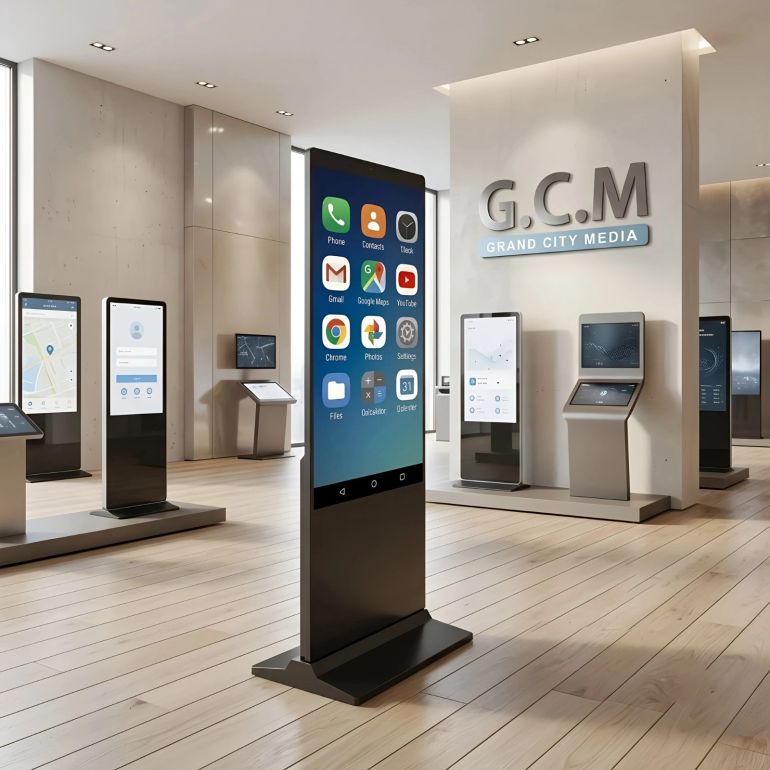
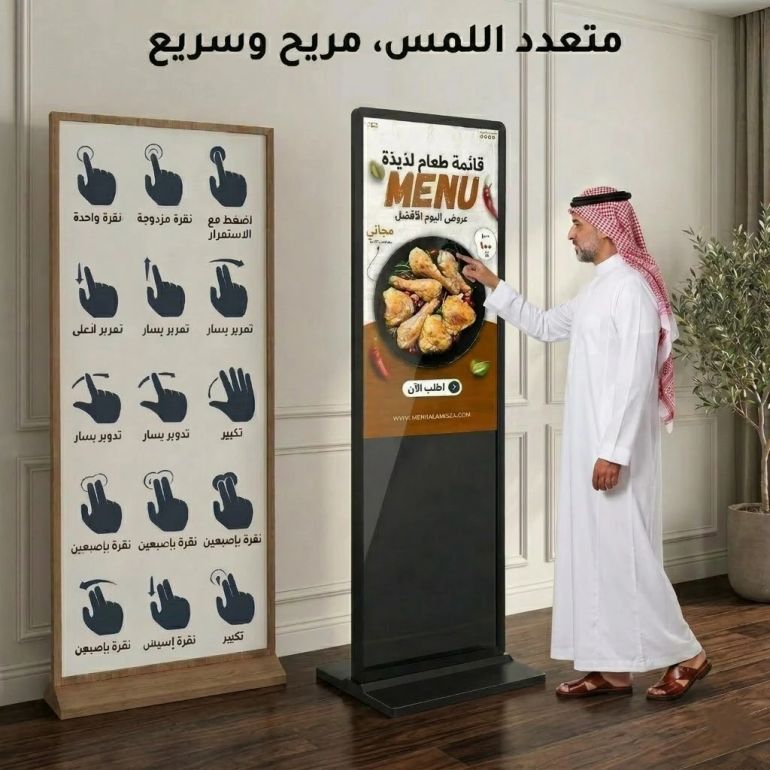
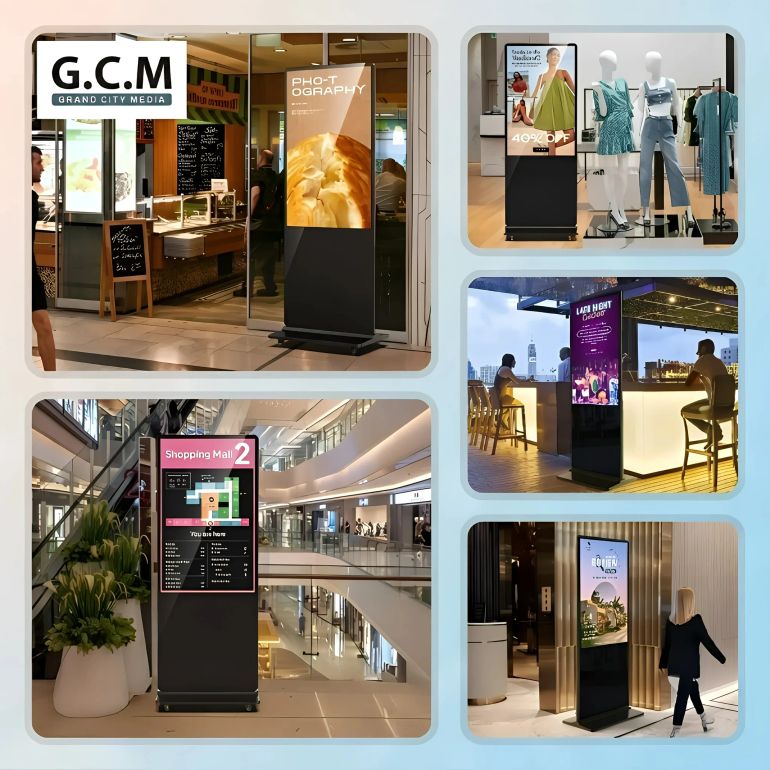
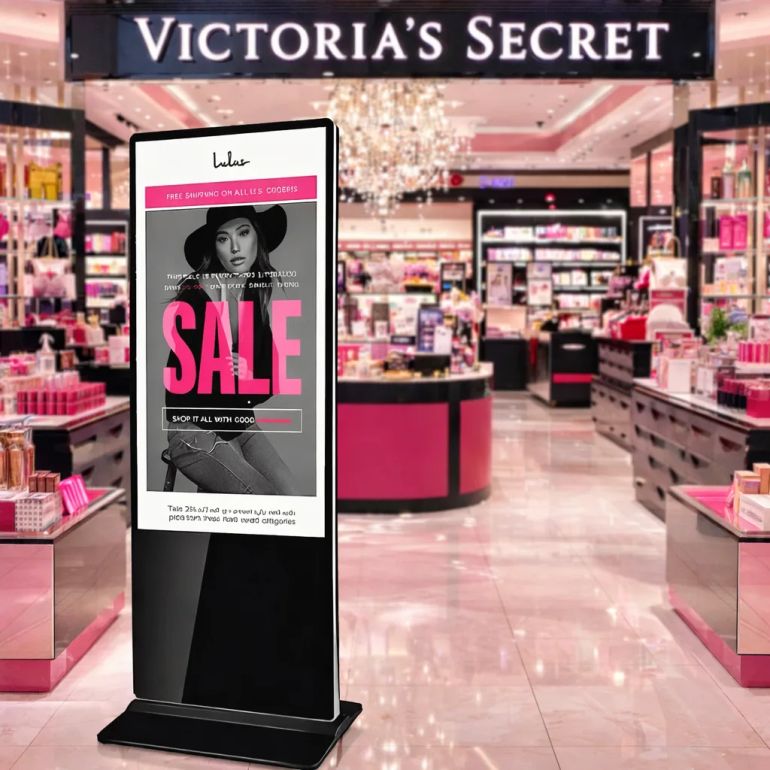

Upgrade your business with G.C.M's 55-inch Digital LCD Screen. Featuring premium 2K resolution and a sleek black design, it's the professional choice for high-impact advertising and interactive displays. Reliable, elegant, and built for 24/7.
more information
SAR 7,436.25
Discount 20%
+
Earn loyalty points with this purchase
Rewards| Specification Parameter | G.C.M Specification Standard |
|---|---|
| Product Type & Category | Smart Digital Signage & Touch Kiosk - G.C.M |
| Screen Size & Display Mode | 55 Inch | Portrait Layout |
| Physical Dimensions | Height 196 cm × Width 74 cm (Slim Design) |
| Resolution & Brightness | 2K High Definition | 400 Nits Brightness |
| OS, RAM & Storage | Android 11 | RAM: 2GB | Storage: 32GB (Google Play Store) |
| Touch Technology | Multi-touch support, up to 10 simultaneous touch points |
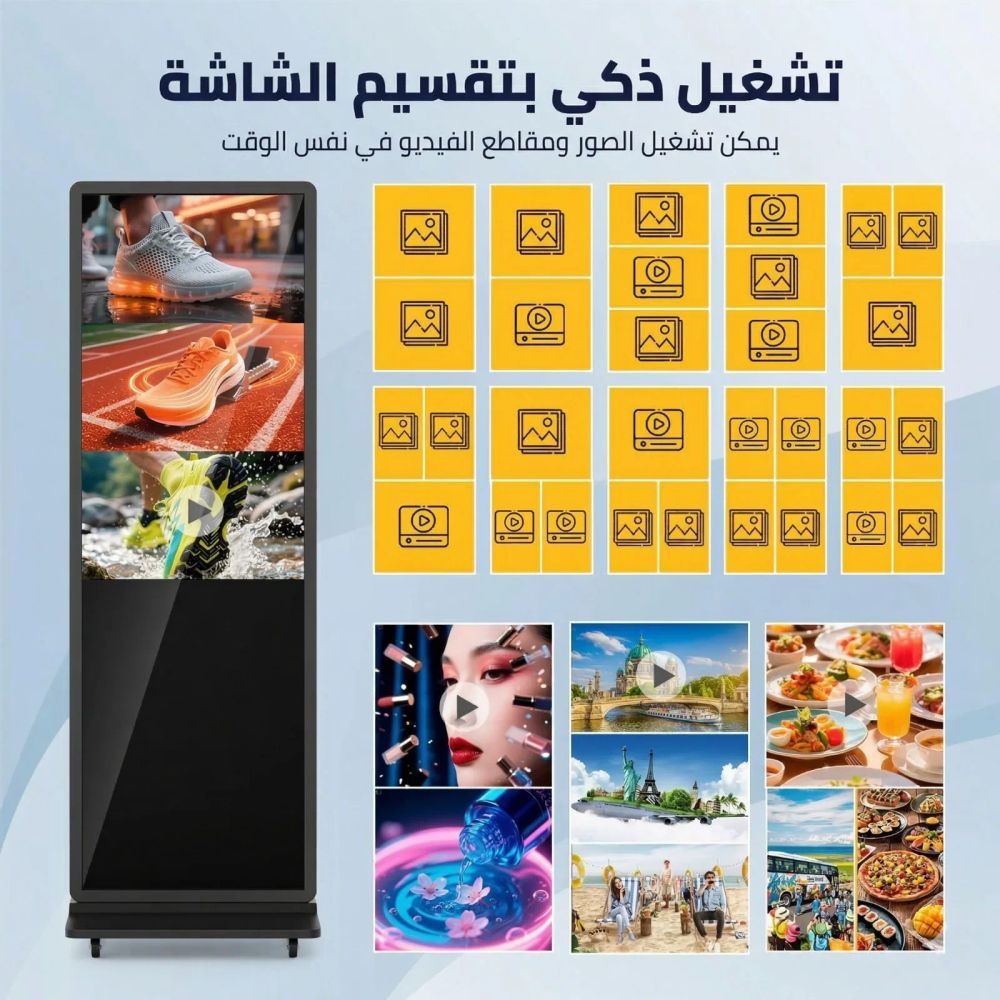
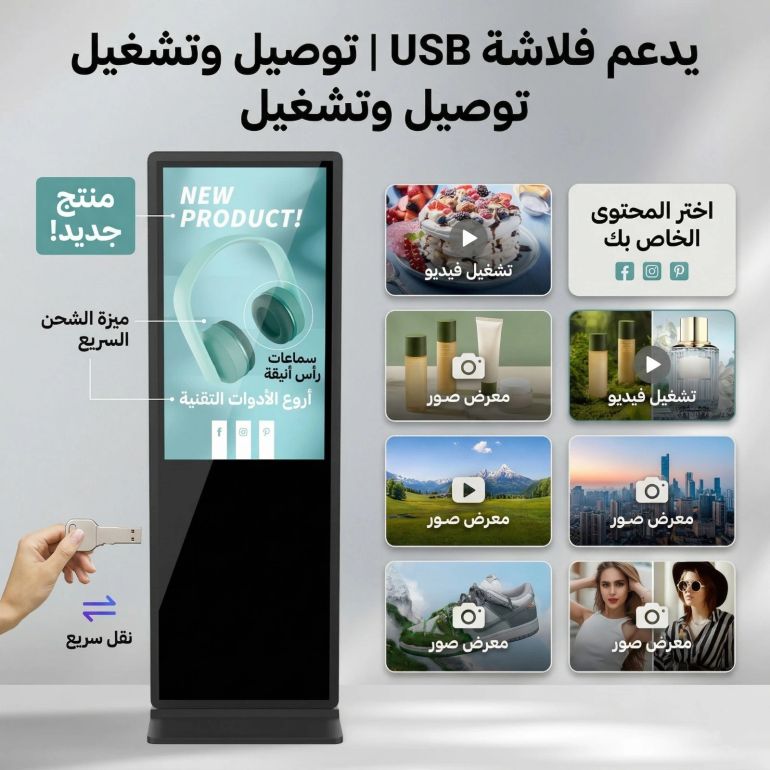
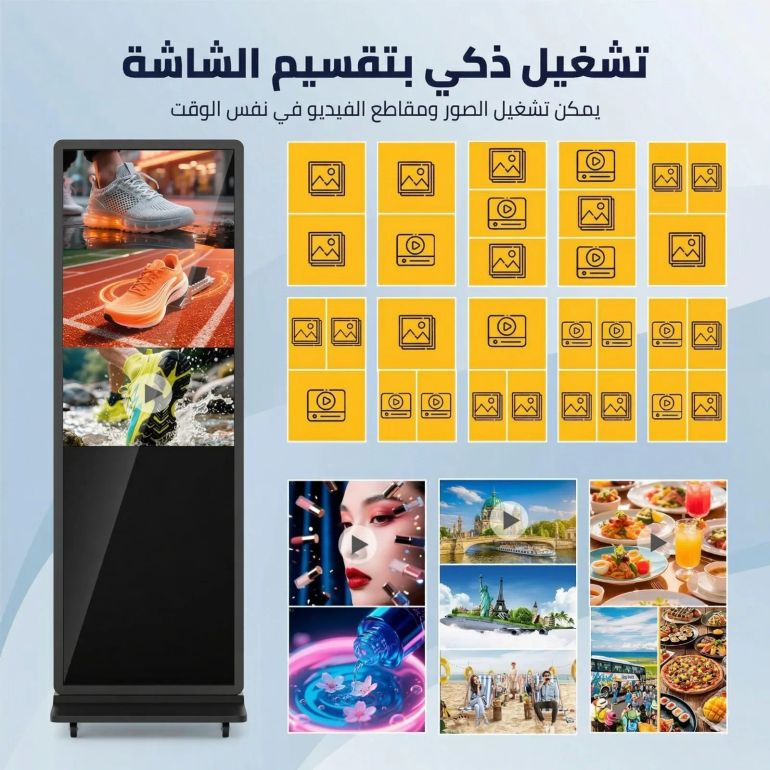
| Supported Media Formats | Video: MP4, AVI, FLV, MOV | Images: JPG, PNG (Split screen supported) |
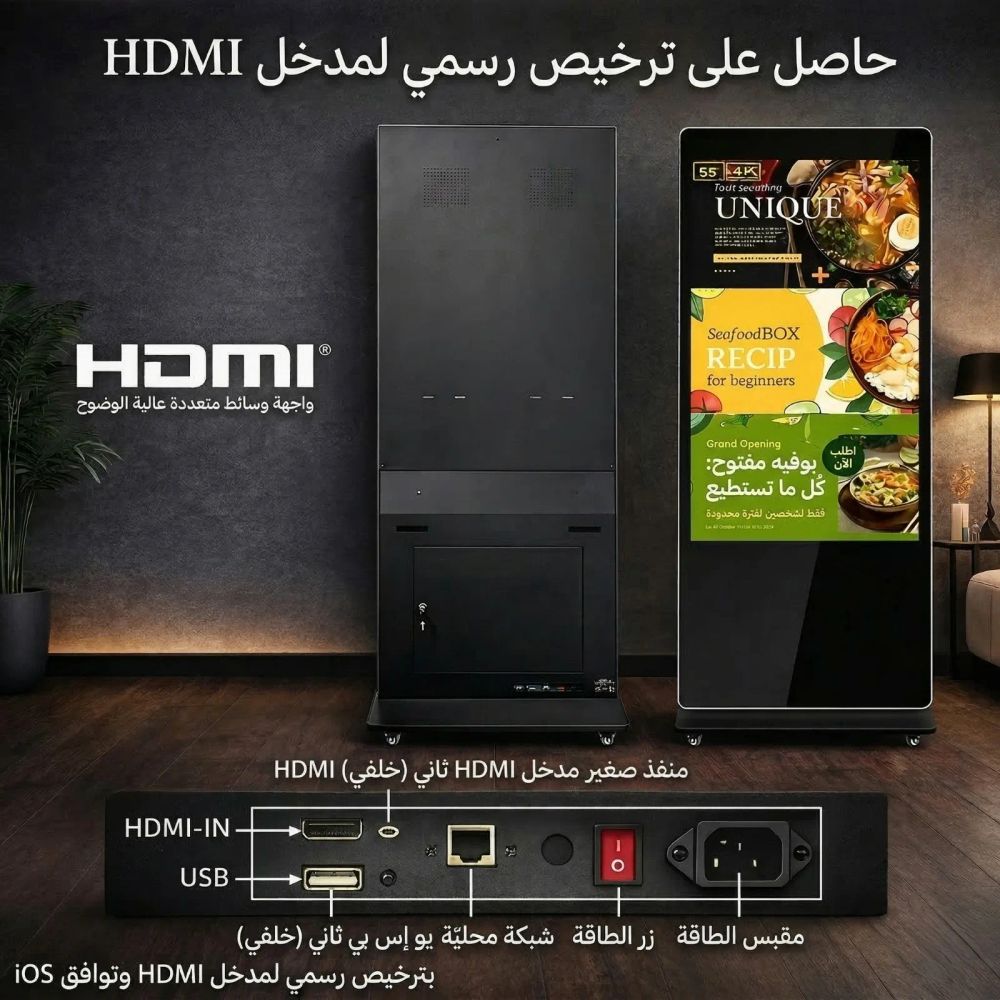
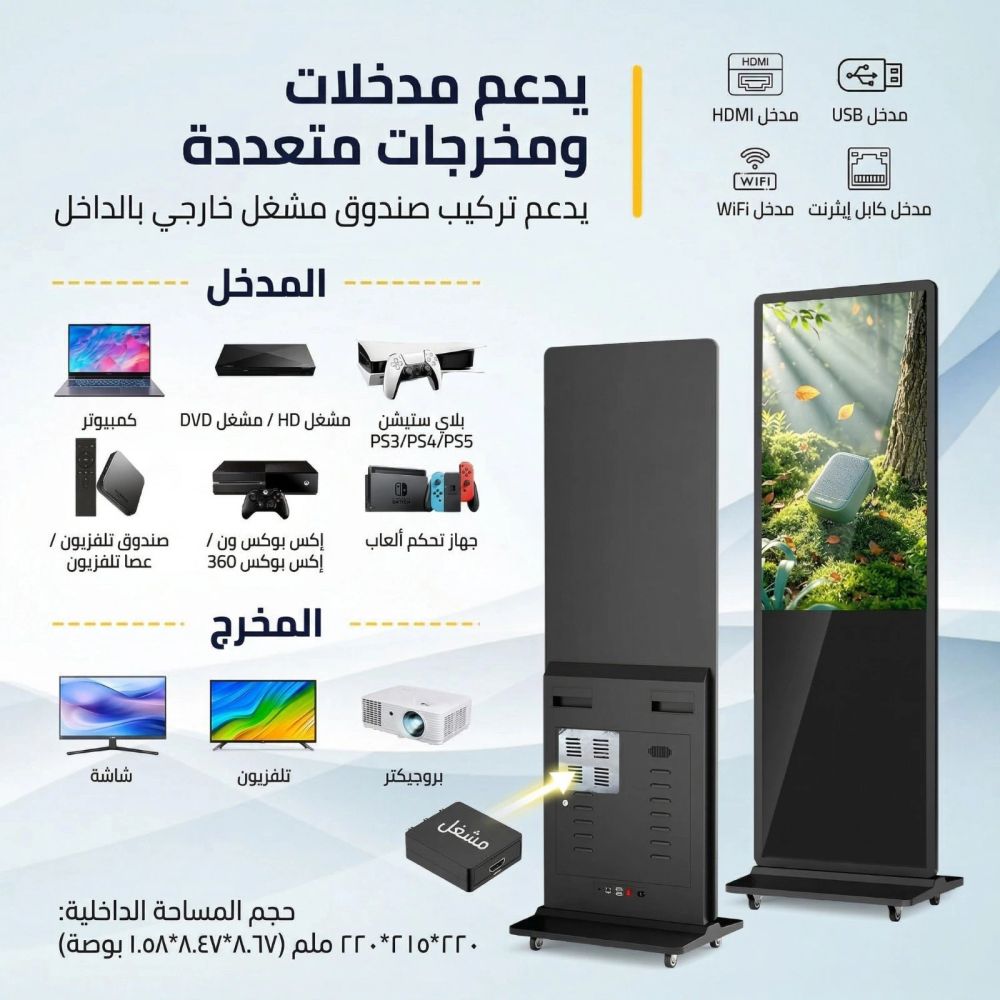
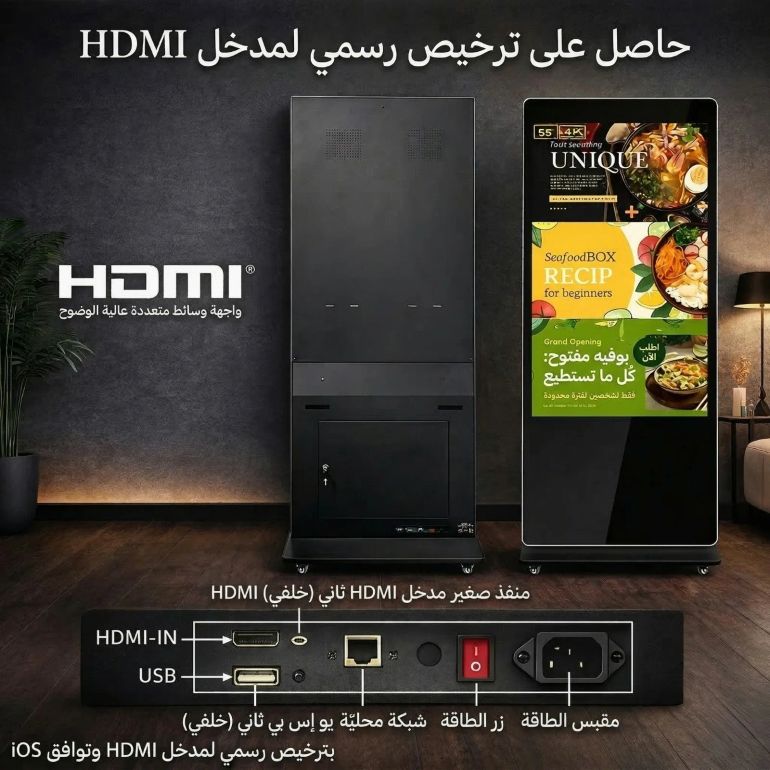
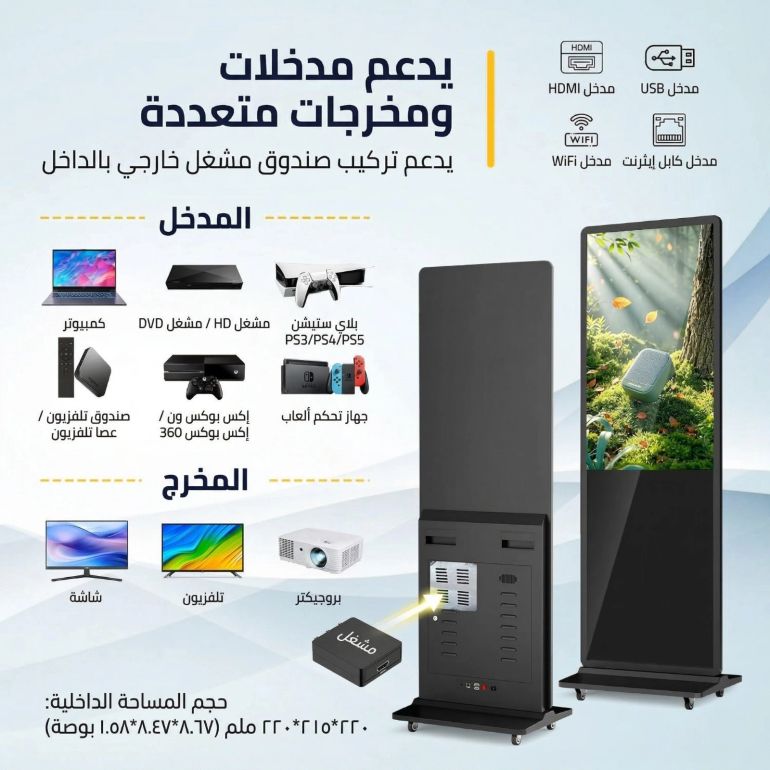
| Connectivity & Control | Wi-Fi, Hotspot, USB + Wireless remote management via LedArt app |
| Build & Mobility | Shock-resistant black metal enclosure + Sturdy movable base with wheels |
| Official Warranty | 2-year manufacturer warranty against manufacturing defects |
A: Yes, it operates on Android 11 with comprehensive, native Arabic language support across all menus and applications.
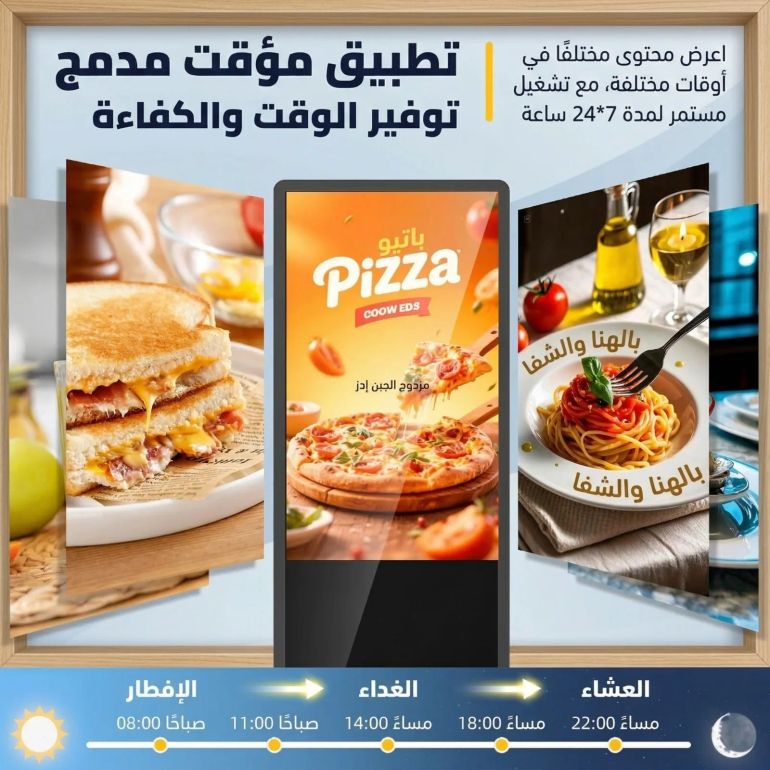
A: Content updates can be easily done via USB, Wi-Fi, hotspot connection, or remotely from your mobile phone using the LedArt app.
A: Yes, you can display content in full-screen mode or split the screen into multiple promotional windows at the same time.
A: Yes, it is engineered for heavy-duty, round-the-clock commercial operation (24/7).
A: It comes with an official 2-year warranty covering manufacturing defects.
Connecting the G.C.M advertising screen to your phone and managing content with the LedArt app.
1. Download the Control App (LedArt): Download the official LedArt app on your smartphone using the links below:
2. Connect to the Screen's Wi-Fi Hotspot: Go to the Wi-Fi (WLAN) settings on your phone, search for the screen's dedicated Wi-Fi hotspot network (usually named AndroidAP or Services), and connect to it directly.
3. Link the Device to the App: Open the LedArt app, go to the Devices section, and tap “Find Device” to instantly sync the app with your display screen.
4. Create a Program and Add Content: Go to the Programs section and tap “New program” to create a new display schedule. Use the plus sign (+) to upload your promotional images or videos, and customize the display duration and transition effects as desired.
5. Instant Transmission and Playback: Once your content is ready, tap the “Send” button at the top or bottom of the screen to instantly transfer the files and start broadcasting your ads professionally!
Note — Pro Tip: Through the app's Devices menu, you can also easily manage screen brightness, schedule automatic Power ON/OFF times, and adjust clock settings.